
How to Set Up a 3‑Key AliExpress Mini Keyboard on macOS
If you bought a tiny 3‑key USB mini keyboard (often sold on AliExpress) and you want to customize the keys on your Mac, this guide is for you. We’ll map keys, assign shortcuts, and save 3 different profiles on macOS.
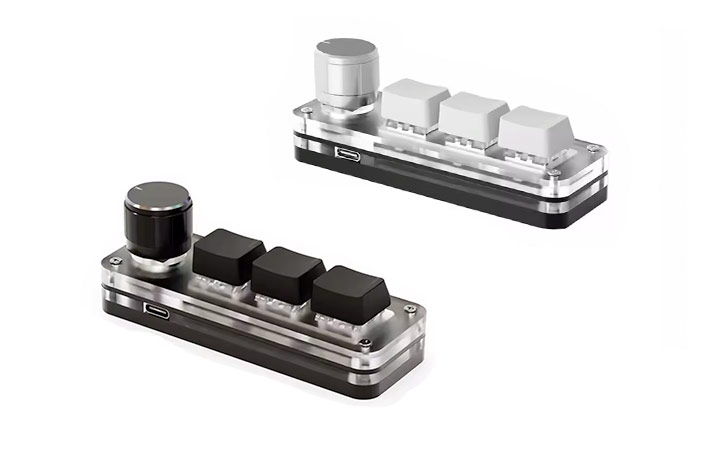

Why this AliExpress mini keyboard is hard to customize on a Mac
Most “3-key programmable keyboards” ship with Windows-only software and limited features.
Many popular AliExpress mini keyboards come with a vendor tool that only runs on Windows. On top of that, for some models the original software does not support multiple profiles, meaning you can’t quickly switch between setups like “Editing”, “Coding”, and “Streaming”.
On macOS (whether you’re using a MacBook, iMac, Mac mini, or Mac Studio), the goal is usually:
- Customize the keys to trigger shortcuts (for example: copy/paste, mute mic, brush tool).
- Create macros and key combinations (like Command + Shift + 4 for screenshots).
- Save multiple profiles and switch between them without opening the app every time.
That’s exactly what you can do using KUi Keys, a free macOS app designed to configure supported USB keypads directly from Apple macOS.
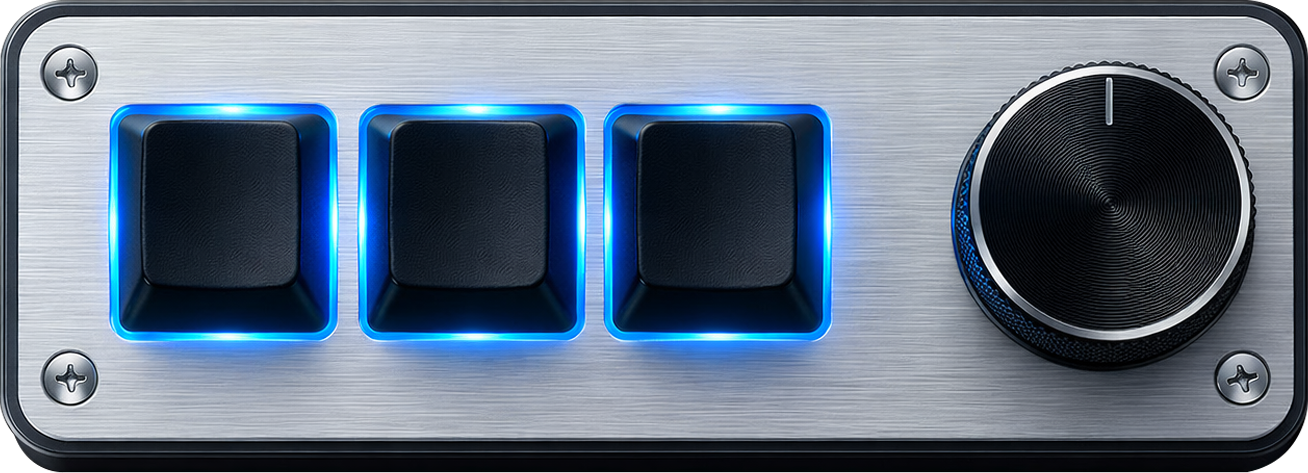
Step-by-step: set up the 3-key mini keyboard on macOS
Configure your AliExpress mini keyboard on your Apple Mac in a few minutes.
1. Plug the mini keyboard into your Mac
Connect the USB mini keyboard to your MacBook, iMac, Mac mini, or Mac Studio. If your model uses USB‑A and your Apple device only has USB‑C ports, use a USB‑C to USB‑A adapter or hub.
2. Download KUi Keys for free from the Mac App Store
Install KUi Keys from the Mac App Store. The app runs natively on macOS and lets you configure supported keypads without Windows.
3. Create a mapping for each key (shortcuts, macros, actions)
In KUi Keys, you can assign actions to every key. Typical macOS examples:
- Command + C (Copy), Command + V (Paste)
- Command + Shift + 4 (Screenshot selection)
- Command + Space (Spotlight search)
- Media keys (Play/Pause, Volume Up/Down)
You can also build powerful macros using Apple Shortcuts on macOS. Create a Shortcut that performs an action (or a multi-step workflow), assign it a keyboard shortcut in Apple Shortcuts, then map that same keyboard shortcut to a key on the AliExpress mini keyboard. This way your 3-key keypad can trigger custom macOS automations with a single press.
This is useful for creatives, developers, and power users who want a tiny macro pad next to their main keyboard.
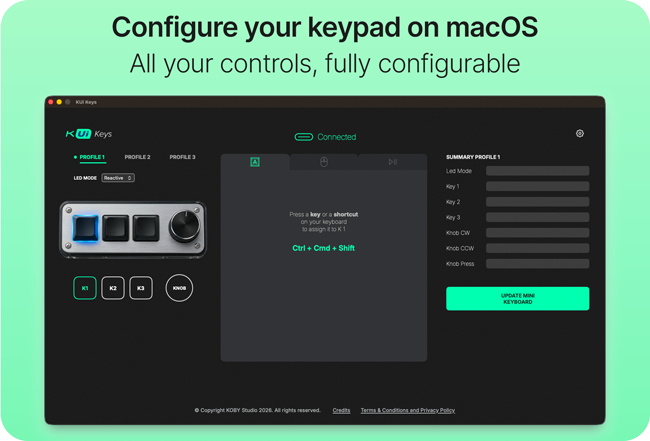
4. Save your configuration to the device
Once you’re happy with your layout, save the configuration. Your mini keyboard will start behaving like a dedicated shortcut controller for macOS.
Create 3 different profiles (and reuse the same mini keyboard for everything)
Switch between setups for work, editing, and gaming on your Mac.
A common limitation of the original Windows software for these AliExpress mini keyboards is the lack of a real multi-profile workflow on specific models. With KUi Keys on macOS, you can create and store three profiles and use the same 3-key mini keyboard in different contexts.
Example profile ideas
- Profile 1 (Design): Brush, Eyedropper, Undo
- Profile 2 (Coding): Run, Search, Toggle Terminal
- Profile 3 (Meetings): Mute mic, Camera toggle, Push‑to‑talk
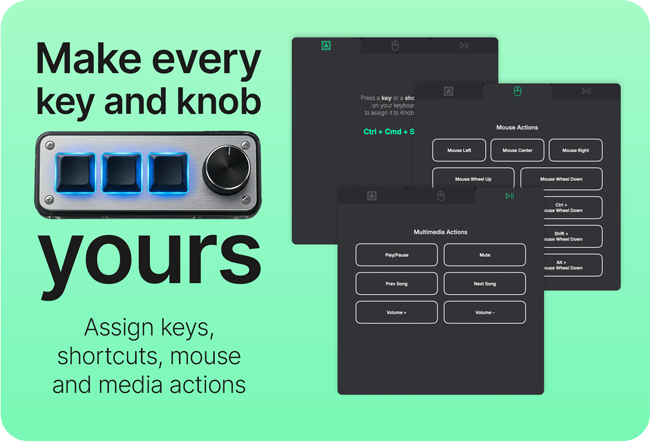
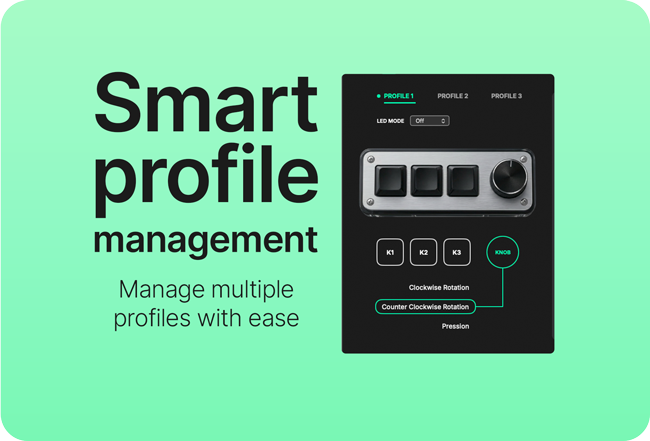
This is especially handy if you work across multiple Apple devices or setups, like a MacBook on the go and a Mac mini or iMac on your desk, while keeping the same muscle memory.
Enable the Menu Bar Helper to switch profiles instantly
No need to reopen the app every time you want a different profile.
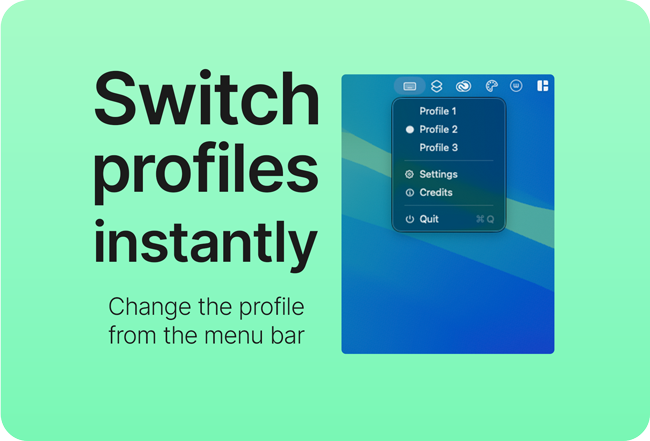
KUi Keys includes a Menu Bar Helper. When enabled from the app settings, it gives you a quick way to switch between your 3 profiles directly from the macOS menu bar.
This makes the mini keyboard feel like a true macOS accessory: you can stay focused in your current app on your MacBook, iMac, Mac mini, or Mac Studio, and change profile in seconds.
Keyboard navigation tip
If you prefer using Apple keyboard shortcuts, you can keep your hands on the keyboard and rely on the 3-key mini keyboard for your most frequent actions.
FAQ: AliExpress 3-key mini keyboard on Mac
Quick answers to common macOS questions.
Does this work on a MacBook?
Yes. KUi Keys is a macOS app, so you can configure supported mini keyboards on a MacBook (including MacBook Air and MacBook Pro).
Does it work on iMac, Mac mini, or Mac Studio?
Yes. The same setup works across Apple desktop Macs like iMac, Mac mini, and Mac Studio.
Do I need Windows or a virtual machine to program the keys?
No. The point is to avoid Windows-only tools and configure your mini keyboard directly on macOS.
Can I use it as a macro keypad?
Yes. The 3-key mini keyboard is perfect as a tiny macro pad for shortcuts and repeated actions.
What if my model is not detected?
If the keypad is not recognized, double-check the USB cable/adapter and make sure your model matches the supported USB vendor/product identifiers listed on the KUi Keys page.
Final note
If you’re looking for the best way to customize an AliExpress mini keyboard on macOS, using a dedicated Mac app is the most reliable path, especially when the original software is Windows-only and does not support multi-profile switching.